
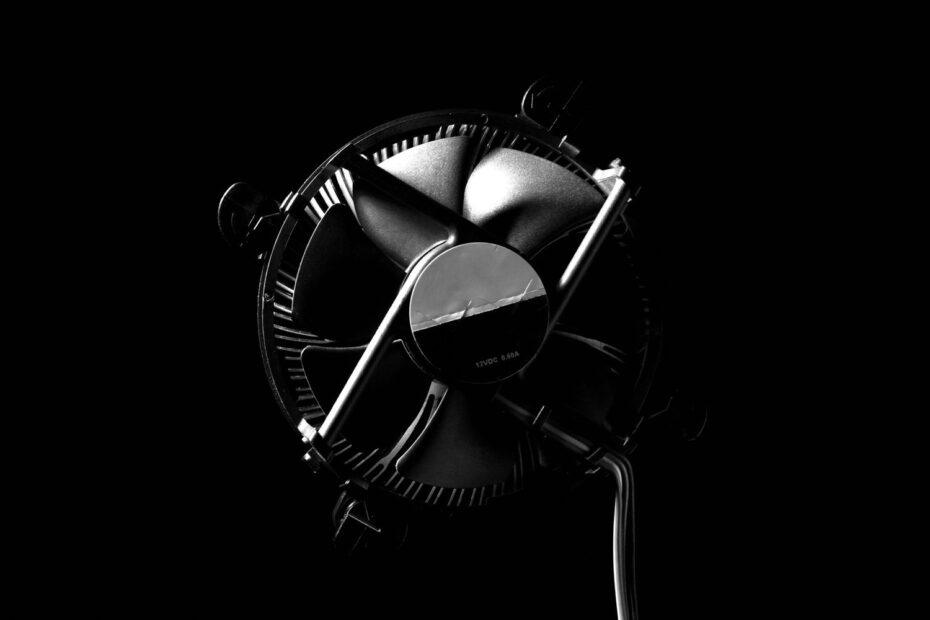
Maintaining optimal temperatures within a computer system is fundamental to its performance, stability, and the lifespan of its components. While high-end cooling solutions like liquid AIOs or custom water loops are often discussed, the foundational element of effective thermal management is often overlooked: proper PC airflow. Understanding and optimizing how air moves through your computer case can significantly improve cooling efficiency, even with standard air coolers and case fans. This guide delves into the practical steps for achieving superior cooling performance through intelligent airflow design.
Understanding Airflow Dynamics
At its core, PC airflow is about creating a consistent and directed path for cooler air to enter the case and for warmer air to exit. This involves managing two primary concepts: fan orientation and case pressure. Most PC cases are designed with specific intake and exhaust fan mounting points. Typically, fans at the front and bottom of the case serve as intakes, drawing in cooler ambient air. Conversely, fans at the rear and top of the case are designated as exhausts, expelling the heat generated by internal components. Achieving a balanced system pressure is key. Positive pressure, where more air is pushed into the case than is exhausted, can help minimize dust ingress. Negative pressure, where more air is exhausted than is taken in, can lead to warmer internal temperatures as air is pulled through unfiltered gaps. A neutral or slightly positive pressure setup is generally preferred for a balance of cooling and dust reduction.
Strategic Fan Configuration and Placement
The placement and type of fans are critical to effective PC airflow. A common and effective configuration involves front intake fans and rear/top exhaust fans. For instance, two 120mm or 140mm fans at the front can provide a robust intake, while a single 120mm fan at the rear and one or two at the top can ensure efficient expulsion of hot air. The choice of fans also matters; static pressure fans are better suited for pushing air through restrictive grilles or radiators, while airflow fans are designed to move larger volumes of air in open spaces. When selecting fans, consider their specifications, such as CFM (Cubic Feet per Minute) for airflow volume and static pressure ratings. The source material notes that the equation for required airflow is related to heat transfer and desired temperature change, highlighting that higher heat loads necessitate greater airflow. While precise calculations are complex, a general rule is to ensure sufficient fan capacity to handle the heat output of your components.
Optimizing for Component Heat Zones
Different components generate heat in distinct areas. The CPU, typically located near the center of the motherboard, requires direct cooling, often aided by the CPU cooler's fan and surrounding case airflow. Graphics cards, usually positioned lower in the case, draw air from the front or bottom and exhaust it, often directly upwards. Motherboard chipsets and VRMs also benefit from general case airflow. Therefore, fan placement should aim to create a direct path from intake to heat-generating components and then towards exhaust points. For example, if your graphics card is a major heat producer, ensuring a strong front intake fan directly feeding it cool air is paramount.
The Importance of Cable Management
Beyond fan placement, the internal arrangement of cables significantly impacts PC airflow. Cluttered cables can obstruct the direct path of air, creating dead zones where heat can accumulate. Tidy cable management, often achieved using zip ties, Velcro straps, and the routing channels provided by modern PC cases, allows air to flow more freely. By bundling and tucking cables away behind the motherboard tray or in drive bays, you create a clearer, unimpeded path for air to move from intake fans, past components, and to exhaust fans. This seemingly minor detail can have a noticeable effect on overall system temperatures.
Combating Dust Buildup
Dust is an insidious enemy of PC cooling. As dust accumulates on heatsinks, fan blades, and filters, it acts as an insulator, trapping heat and reducing the efficiency of both fans and heatsinks. Regular cleaning is essential. Utilizing dust filters on intake points, coupled with a slightly positive pressure setup, can help mitigate dust accumulation. However, periodic maintenance, such as vacuuming or using compressed air to clear dust from all accessible components and fan blades, is indispensable for maintaining optimal PC airflow and thermal performance. The concept of dust acting as a thermal insulator, impeding airflow and reducing heatsink/fan performance, is a critical factor in sustained cooling effectiveness.
By thoughtfully arranging your case fans, managing internal cables, and committing to regular dust maintenance, you can create an efficient cooling environment for your PC. This optimized PC airflow not only helps prevent thermal throttling and ensures components operate within safe temperature ranges but also contributes to a quieter and more stable computing experience.